OGCAPI Features Part 3 Filtering
Filtering allows requests to an OGC API - Features service to return only the features needed. This can be based on feature properties, location, or a combination of both. In this tutorial, you'll learn how filtering is supported in MapServer and how to use it in a sample web application.
Let's take a look at the Timișoara OGC API Landing Page. This contains a link to a page listing all the supported Conformance Classes.
The three we are interested in for this tutorial are:
- http://www.opengis.net/spec/ogcapi-features-3/1.0/conf/queryables
- http://www.opengis.net/spec/ogcapi-features-3/1.0/conf/queryables-query-parameters
- http://www.opengis.net/spec/ogcapi-features-3/1.0/conf/filter
Note
As this is an unreleased feature (due as part of the MapServer 8.8 release), documentation can only be seen on the documentation preview web site.
We can see which attributes in the buildings layer are filterable by opening the queryables endpoint:
http://localhost:7000/TIMISOARA/ogcapi/collections/buildings/queryables?f=html
This list is controlled in MapServer by the oga_queryable_items keyword in the layer METADATA block.
In this example we use the special value all, which exposes all layer attributes as queryables
(similar to gml_include_items when set to all). If we only want selected attributes we can
use a comma-separated list.
    LAYER
        NAME "buildings"
        TYPE POLYGON
        # allow the OGR FeatureId to be returned and used for querying
        # see https://github.com/MapServer/MapServer/pull/7533
        PROCESSING "OGR_EXPOSE_FID=TRUE"
        METADATA
            "ows_title" "Buildings"
            "gml_include_items" "all"
            "gml_featureid" "fid"
            "gml_types" "auto"
            "oga_queryable_items" "all"
            # or a list of properties
            # "oga_queryable_items" "name,osm_id"
        ...
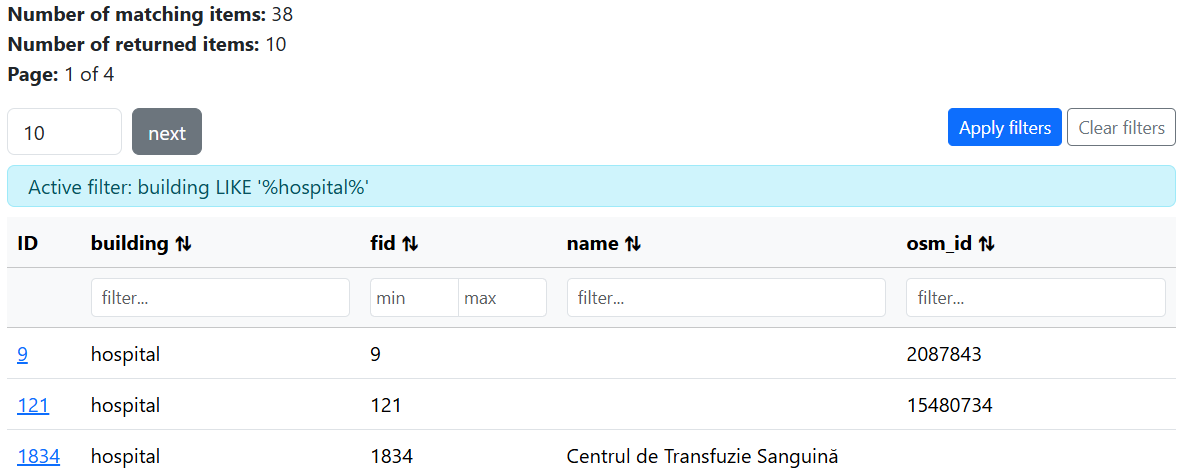
The default MapServer Bootstrap templates then expose these queryables as simple filter inputs in the HTML interface. You can try this directly on the items page:
http://localhost:7000/TIMISOARA/ogcapi/collections/buildings/items?f=html
Filter Types
CQL2 stands for Common Query Language 2, an OGC standard for defining filters on feature data.
CQL2-text and CQL2-JSON are two equivalent encodings of the same filtering language. CQL2-text is a human-readable syntax. CQL2-JSON represents the same logic as a structured JSON object, making it easier for software to generate, validate, and manipulate programmatically.
When you use the Bootstrap template above and apply a filter, you will see the query in the URL, for example:
The filter-lang=cql2-text parameter indicates that the filter is written in CQL2-text.
The filter itself is URL-encoded (for example spaces become + and special characters are percent-encoded),
which is required because it is being passed in a URL query string.
We can also write the same query using CQL2-JSON:
Both expressions mean the same thing: return features where the building attribute contains "hospital".
The JSON filter looks as follows as an encoded-URL:
If you open this in a browser, you will see a list of matching features. These are returned in JSON because we supplied the f=json parameter.
We also have to add the &filter-lang=cql2-json parameter, as by default MapServer assumes cql2-text.
In addition to CQL2 filters, MapServer also supports simple query parameter filtering on queryable attributes.
For example, &building=hospital is a shorthand for an equality-style filter on the building attribute.
This is convenient for quick lookups but lacks the expressiveness of full CQL2.
http://localhost:7000/TIMISOARA/ogcapi/collections/buildings/items?f=json&building=hospital
Custom Application with Filtering
MapServer's filtering support allows us to quickly build powerful applications, using simple API calls. http://localhost:7001/timisoara.html links to a custom OpenLayers application, using the OGC filtering API to filter buildings by type, and highlight them on a map.
The key parts of the code relating to filtering are building the filter string (as cql2-text):
const cqlFilter = `building = '${buildingType}'`;
return `${baseUrl}/timisoara/ogcapi/collections/buildings/items?` +
    `filter=${encodeURIComponent(cqlFilter)}&filter-lang=cql2-text&limit=1000&f=json`;
And updating the data source when the selection changes:
document.getElementById('building-select').addEventListener('change', (e) => {
    const newSource = new VectorSource({
        format: new GeoJSON(),
        url: buildOgcUrl(e.target.value),
        strategy: allStrategy,
    });
    vectorLayer.setSource(newSource);
});
The options for the drop-down list are defined in the ./workshop/exercises/app/timisoara.html page.
<select id="building-select">
    <option value="apartments">Apartments</option>
    <option value="church">Church</option>
    <option value="commercial">Commercial</option>
    <option value="hospital">Hospital</option>
    <option value="office">Office</option>
    <option selected value="university">University</option>
</select>
Code
Example
- MapServer OGC API Features request: http://localhost:7000/timisoara/ogcapi/collections/buildings/items?f=html
- Local OpenLayers example: http://localhost:7001/timisoara.html
timisoara.js
import '../css/style.css';
import ImageWMS from 'ol/source/ImageWMS.js';
import Map from 'ol/Map.js';
import OSM from 'ol/source/OSM.js';
import View from 'ol/View.js';
import { Image as ImageLayer, Tile as TileLayer } from 'ol/layer.js';
import VectorLayer from 'ol/layer/Vector.js';
import VectorSource from 'ol/source/Vector.js';
import GeoJSON from 'ol/format/GeoJSON.js';
import { Style, Stroke } from 'ol/style.js';
import { all as allStrategy } from 'ol/loadingstrategy.js';

const mapserverUrl = import.meta.env.VITE_MAPSERVER_BASE_URL;
const mapfilesPath = import.meta.env.VITE_MAPFILES_PATH;
const baseUrl = mapserverUrl.replace(/\?+$/, '');

function buildOgcUrl(buildingType) {
    const cqlFilter = `building = '${buildingType}'`;
    return `${baseUrl}/timisoara/ogcapi/collections/buildings/items?` +
        `filter=${encodeURIComponent(cqlFilter)}&filter-lang=cql2-text&limit=1000&f=json`;
}

const select = document.getElementById('building-select');

const vectorSource = new VectorSource({
    format: new GeoJSON(),
    url: buildOgcUrl(select.value),
    strategy: allStrategy,
});

const vectorLayer = new VectorLayer({
    source: vectorSource,
    style: [
        new Style({
            stroke: new Stroke({ color: 'rgba(0,0,0,0.5)', width: 5 }),
        }),
        new Style({
            stroke: new Stroke({ color: 'cyan', width: 3 }),
        }),
    ]
});

const layers = [
    new TileLayer({
        source: new OSM(),
        visible: false,
    }),
    new ImageLayer({
        opacity: 0.2,
        source: new ImageWMS({
            url: mapserverUrl + mapfilesPath + 'timisoara.map&',
            params: { 'LAYERS': 'buildings', 'STYLES': '' },
        }),
    }),
    vectorLayer,
];

const map = new Map({
    layers: layers,
    target: 'map',
    view: new View({
        center: [2363111, 5740066],
        zoom: 16,
    }),
});

document.getElementById('building-select').addEventListener('change', (e) => {
    const newSource = new VectorSource({
        format: new GeoJSON(),
        url: buildOgcUrl(e.target.value),
        strategy: allStrategy,
    });
    vectorLayer.setSource(newSource);
});

const loadingMask = document.getElementById('loading-mask');
map.on('loadstart', () => loadingMask.classList.add('active'));
map.on('loadend', () => loadingMask.classList.remove('active'));
ogcapi-features.map
MAP
    NAME "Timisoara"
    SIZE 800 800
    EXTENT 20.9984994 45.6280885 21.5152955 45.8955907
    PROJECTION
        "EPSG:4326"
    END
    WEB
        IMAGEPATH "/etc/mapserver/tmp/" # end-slash is important!
        METADATA
            "ows_enable_request" "*"
            "ows_srs" "EPSG:4326 EPSG:3857"
            "ows_use_default_extent_for_getfeature" "false"
        END
    END
    LAYER
        NAME "buildings"
        PROJECTION
            "EPSG:4326"
        END
        STATUS OFF
        TYPE POLYGON
        PROCESSING "OGR_EXPOSE_FID=TRUE"
        CONNECTIONTYPE OGR
        CONNECTION "data/osm/timisoara/buildings.gpkg"
        TEMPLATE "ttt"
        METADATA
            "ows_title" "Buildings"
            "gml_include_items" "all"
            "gml_featureid" "fid"
            "gml_types" "auto"
            "oga_queryable_items" "all"
            "oga_sortable_items" "all"
        END
        CLASSITEM "building"
        CLASS
            STYLE
                COLOR 220 80 60
            END
            EXPRESSION {house}
        END
        CLASS
            STYLE
                COLOR 60 130 220
            END
            EXPRESSION {apartments}
        END
        CLASS
            STYLE
                COLOR 180 100 40
            END
            EXPRESSION {industrial}
        END
        CLASS
            STYLE
                COLOR 100 180 80
            END
            EXPRESSION {residential}
        END
        CLASS
            STYLE
                COLOR 240 160 60
            END
            EXPRESSION {detached}
        END
        CLASS
            STYLE
                COLOR 130 110 170
            END
            EXPRESSION {garages}
        END
        CLASS
            STYLE
                COLOR 150 125 185
            END
            EXPRESSION {garage}
        END
        CLASS
            STYLE
                COLOR 60 190 190
            END
            EXPRESSION {commercial}
        END
        CLASS
            STYLE
                COLOR 210 140 90
            END
            EXPRESSION {semidetached_house}
        END
        CLASS
            STYLE
                COLOR 80 160 200
            END
            EXPRESSION {school}
        END
        CLASS
            STYLE
                COLOR 160 140 110
            END
            EXPRESSION {warehouse}
        END
        CLASS
            STYLE
                COLOR 190 190 100
            END
            EXPRESSION {roof}
        END
        CLASS
            STYLE
                COLOR 100 200 120
            END
            EXPRESSION {greenhouse}
        END
        CLASS
            STYLE
                COLOR 220 110 150
            END
            EXPRESSION {retail}
        END
        CLASS
            STYLE
                COLOR 200 160 80
            END
            EXPRESSION {construction}
        END
        CLASS
            STYLE
                COLOR 180 120 100
            END
            EXPRESSION {terrace}
        END
        CLASS
            STYLE
                COLOR 170 130 200
            END
            EXPRESSION {church}
        END
        CLASS
            STYLE
                COLOR 240 180 130
            END
            EXPRESSION {kindergarten}
        END
        CLASS
            STYLE
                COLOR 200 80 100
            END
            EXPRESSION {hospital}
        END
        CLASS
            STYLE
                COLOR 80 110 190
            END
            EXPRESSION {university}
        END
        CLASS
            STYLE
                COLOR 120 170 210
            END
            EXPRESSION {dormitory}
        END
        CLASS
            STYLE
                COLOR 160 155 140
            END
            EXPRESSION {shed}
        END
        CLASS
            STYLE
                COLOR 90 150 170
            END
            EXPRESSION {office}
        END
        CLASS
            STYLE
                COLOR 140 200 160
            END
            EXPRESSION {public}
        END
        CLASS
            STYLE
                COLOR 170 165 150
            END
            EXPRESSION {service}
        END
        CLASS
            STYLE
                COLOR 100 100 160
            END
            EXPRESSION {train_station}
        END
        CLASS
            STYLE
                COLOR 210 150 170
            END
            EXPRESSION {hotel}
        END
        CLASS
            STYLE
                COLOR 220 220 220
            END
        END
    END
END
Exercises
-
Update the
oga_queryable_itemsmetadata keyword to only include the "building" and "name" fields. Check that the list of queryables is updated at: http://localhost:7000/TIMISOARA/ogcapi/collections/buildings/queryables?f=html, and also in the Bootstrap page: http://localhost:7000/TIMISOARA/ogcapi/collections/buildings/items?f=html. -
Add a new building type to the dropdown in
./workshop/exercises/app/timisoara.html. You can find additional types by inspecting the buildings items page.